 RigMining
Troubleshooting
ASIC Miner Hashrate Dropped? Causes, Checks and When to Call Support
A lower hashrate does not always mean a broken miner. Check the reading, heat, fans, power, hashboards, pool and firmware in order, and know when to stop.
Is the drop real?
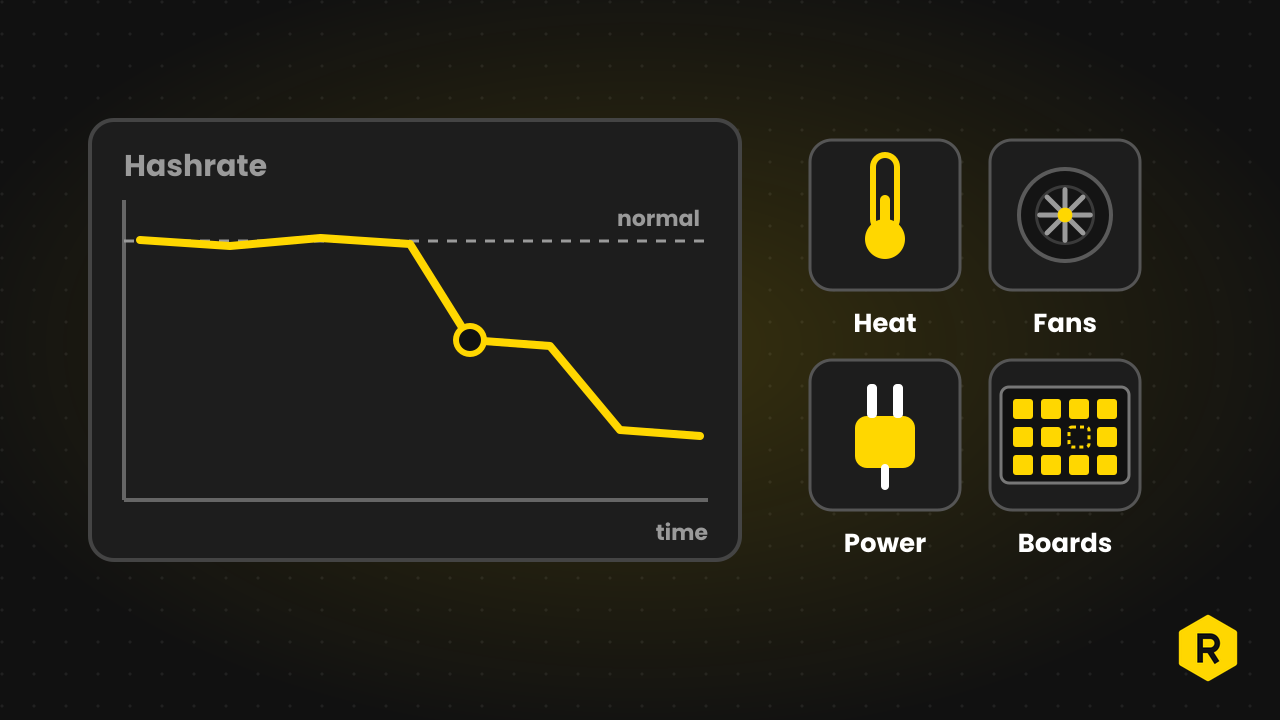
Before you open anything, make sure the number you are looking at is right.
- Compare two readings. The miner’s own status page and the pool dashboard should roughly agree over time. A pool works out your hashrate from the work you send, so it moves up and down over short periods. Look at an average over several hours, not a single minute.
- Set a baseline. Write down what your machine normally does. D-Central suggests that a fall of more than about 5% from the expected value is worth looking into.
- Separate hashrate from earnings. You can earn less with the same hashrate, because earnings also depend on difficulty, price and pool luck. Our article on what drives mining profitability explains why. If hashrate is steady, the miner is fine.
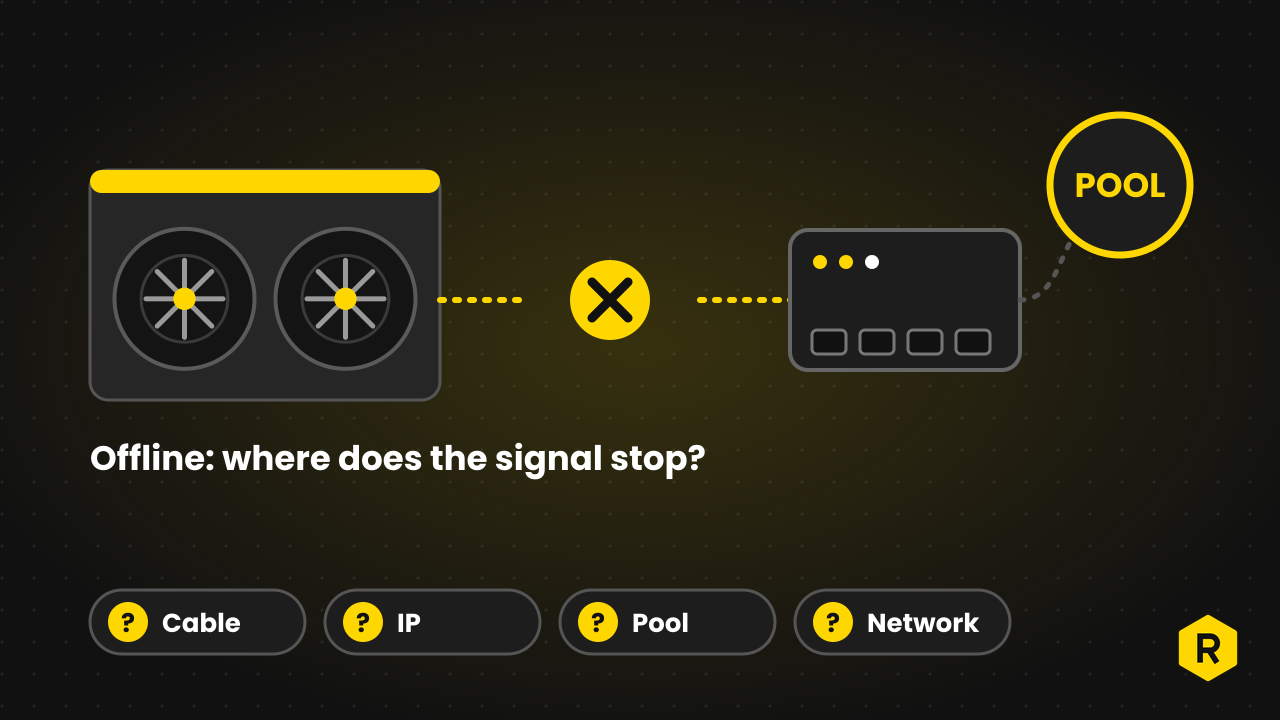
- Check the network. Bitmain’s maintenance guide says that if the delay to the pool is over 100 ms, the hashrate can fluctuate. See the offline checklist for how to test it.
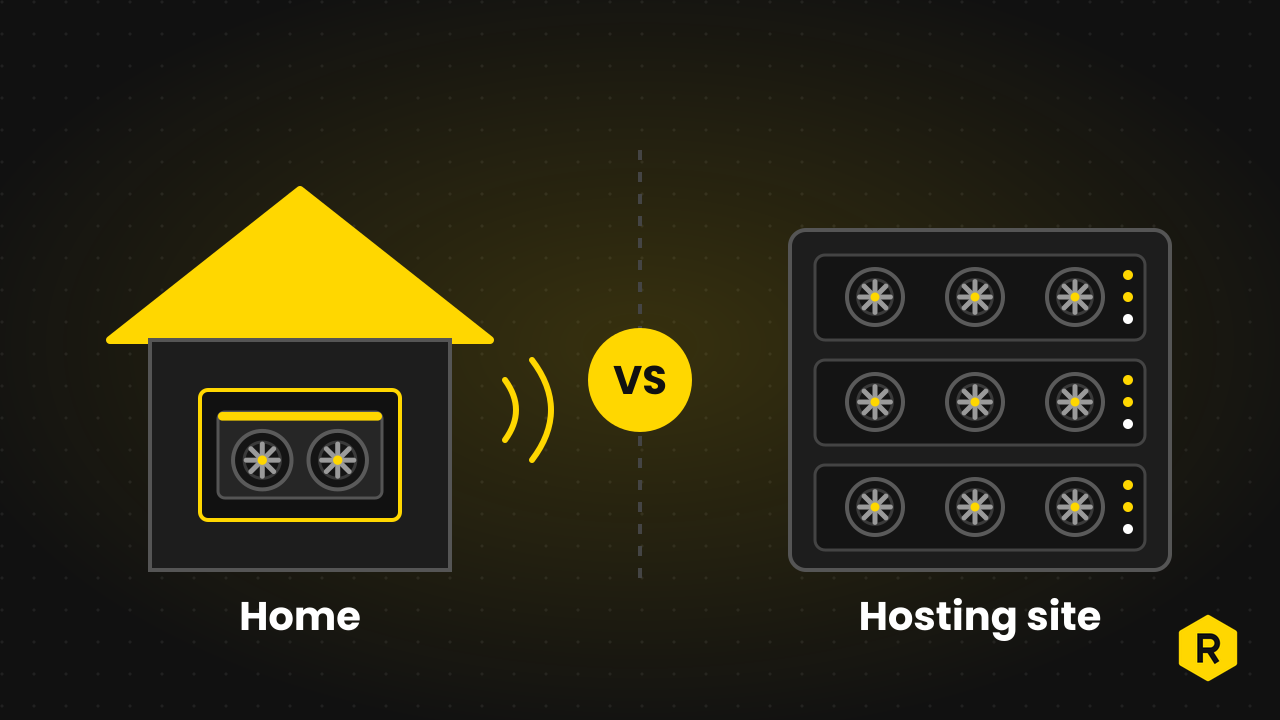
If your miner is hosted with OneMiners
You cannot reach the cooling, the cables or the power, and you should not try. Check your dashboard, then send a ticket with the serial number and a screenshot. OneMiners’ warranty and uptime page explains what the uptime guarantee covers and what the warranty needs. The FAQ answer on a miner that is not working says where to send the ticket.
The rest of this page is for a machine you run yourself, and it also helps you understand what a hosting team looks at.
Causes to check, in order
1. Heat
Heat is the most common cause. A miner that is too hot slows itself down, or switches off to protect itself.
- Bitmain’s maintenance guide says the miner’s working environment should be 0 to 40 °C. It advises keeping the air at the intake between 10 and 25 °C, and says that above 30 °C the machine can easily enter high-temperature protection with zero hashrate.
- D-Central suggests investigating when chip temperatures stay above 85 °C. Your model’s normal range may be different, so check the manual.
- If the hardware was not damaged, Bitmain says the hashrate comes back once the surroundings are cooler and the miner is switched on again.
2. Dust and fans
Dust on the heat sinks and fans traps heat, and a slow or dead fan cuts the airflow. D-Central tells you to check the intake and exhaust and to read the speed of every fan. Bitmain’s 19-series guide says a lost fan or a low fan speed shows up in the log as an “ERROR_FAN_LOST” message. Keep the air intake free of paper, plastic or dirt.
3. Power
An unstable power supply causes errors and lost hashrate.
- Bitmain’s inspection list gives a normal wall socket value of 220 V within 10%, and asks you to check that shelves and sockets are grounded.
- D-Central says voltage that sags under load can cause calculation errors, and it advises replacing a power supply whose output deviates by more than 5%.
- Bitmain’s guides say that for missing chips you should replace the power supply and make sure the miner is properly earthed.
4. Hashboards and chips
Most miners have several hashboards, and each carries a share of the hashrate.
- Bitmain’s troubleshooting page for older models describes a case where lost chips left a miner running at about two thirds of its normal hashrate.
- The miner’s status page and kernel log show missing chips or missing boards. In Bitmain’s guides the kernel log is under the system menu.
- D-Central suggests swapping boards between slots to see whether the fault follows the board.
Hardware faults usually need a repair. If you have a machine under warranty, contact support before you open it.
5. Do not keep restarting it
Restarting seems harmless, but Bitmain warns against using it as a fix for a hardware fault. Its restart tips say that if a hashboard finds only some of its chips, you should not restart the miner and should send it for repair. If parts of the boards show low hashrate, Bitmain says not to keep restarting. A restart is fine for network and pool problems.
6. Pool and network
D-Central lists stale or rejected shares and disconnections as causes of lower effective hashrate. Look at your pool dashboard for rejected shares, and check that the worker name and pool address are correct. A second pool as a backup helps when the first one has trouble.
7. Firmware and settings
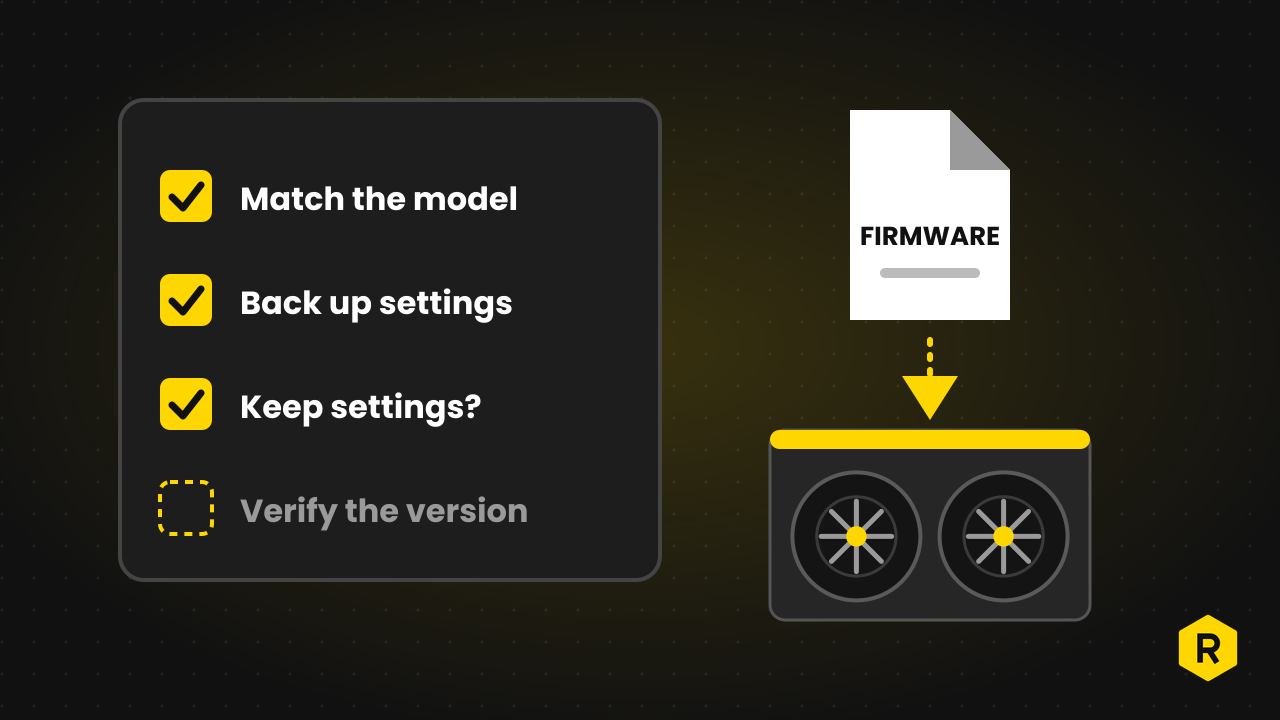
D-Central notes that older firmware may carry weaker frequency tables or bugs. Some firmware also has a low-power or sleep mode, so check which mode the miner is in. Before you update, read our guide on how to update ASIC miner firmware safely.
When to stop and call support
Stop and contact support when:
- One board or fan has failed, or chips are missing.
- The miner shows temperature errors that return after it cools.
- The hashrate does not recover after you have checked heat, power and network.
- You would need to open the machine.
Include the model, serial number, a screenshot of the status page, the kernel log if you can read it, and what you have already tried. Our guide on how to contact support shows the channels, and the support request page takes tickets.
Terms such as hashrate, uptime and firmware are explained in the glossary. The manuals and firmware library has guides for many models.
Sources and further reading
- D-Central: identifying and resolving common issues in ASIC miners
- Bitmain support: ANTMINER operation and maintenance guidance
- Bitmain support: troubleshooting and solutions for ANTMINER failures
- Bitmain support: tips for common scenarios of miner restarts
- Bitmain support: possible problems and solutions for S7, S9 and L3+
Written by the OneMiners team. We sell and host mining machines, so this article links to our own pages where they are relevant, and the sources above are independent. It explains how things work and is not financial advice. Mining carries risk, and prices, rates and features change, so check oneminers.com for current details.